Jira Priority Levels: Schemes, JQL and 5 Traps, Tested
On this page
- The five default priority levels
- How to set or change a work item’s priority
- Change the levels: Jira settings, Work items, Priorities
- Priority schemes: different levels per space
- Priority in JQL: what works and what bites
- Renaming a priority breaks saved filters
- Deleting a priority
- Priority, severity and the impact matrix
- Seeing work by priority
- How we tested
Support files a bug as Highest. The on-call engineer runs the team’s saved filter for “everything above Medium” and does not see it. Nobody made a mistake that day. A month earlier an admin had added a priority called Blocker for exactly these bugs, and Jira put it below Lowest.
We tested how Jira’s priorities really behave on our Jira Cloud site on 10 November 2026: the JQL people write against them, a priority added and moved, a priority scheme, a rename and a delete. This guide is what we found, with the levels and settings people search for first.
Short answer: Jira has five priority levels by default: Highest, High, Medium,
Low and Lowest, and new work items get Medium. Admins change them in Jira settings, Work
items, Priorities, and give a space its own subset with a priority scheme. In JQL,
priority > Medium means higher than Medium and ORDER BY priority DESC puts Highest first. A
priority you add goes below Lowest until you move it, and renaming one breaks every saved
filter that uses the old name.
The five default priority levels
Every Jira Cloud site starts with the same five priorities. These are the descriptions Atlassian gives them, and the ones we found on our site:
| Level | Atlassian’s description | ID on our site | Colour on our site |
|---|---|---|---|
| Highest | “The problem will block progress.” | 1 | dark red |
| High | “Serious problem that could block progress.” | 2 | pink-red |
| Medium | “Has the potential to affect progress.” | 3 | orange |
| Low | “Minor problem or easily worked around.” | 4 | dark grey |
| Lowest | “Trivial problem with little or no impact on progress.” | 5 | light grey |
Two things in this table matter later. The order is what JQL compares: Highest is “greater” than High. The ID is what Jira stores, and a number in JQL means an ID, not a level.
The descriptions are written for bugs. For planned work they read oddly (“Trivial problem” for a small feature), which is why many teams write their own. If you do, keep them short: Atlassian notes that the description is not shown on the work item and is mainly there for other admins.
P1, P2, P3, P4 and blocker
Jira Cloud has no P1 or Blocker out of the box. Atlassian’s own 2015 blog post still lists “five default priorities (blocker, critical, major, minor, trivial)” from older Jira versions, and Jira Service Management’s alerts use P levels (Atlassian’s example: “low (P4) level alerts”), which is why both naming styles appear in search results. Mapping them is a team decision:
| Your team says | Jira default | What it usually means for a bug |
|---|---|---|
| P1 / Blocker | Highest | Work stops for someone; drop other work |
| P2 / Critical | High | Serious, in this sprint or this week |
| P3 / Major | Medium | Normal queue |
| P4 / Minor | Low | When there is room |
| P5 / Trivial | Lowest | Might never happen; review or close |
The right-hand column is ours, a starting point to copy and change, not an Atlassian rule. Write your own version into each priority’s description so everyone reads the same words.
How to set or change a work item’s priority
Open the work item and pick a value in the Priority field. If a work type has no Priority
field, a space admin has to add it to that type’s fields first. Through the REST API it is one field
in PUT /rest/api/3/issue/{key}.
What you cannot do is empty it. On our site Jira refused to clear Priority with a 400 error
(“Specify the Priority (id or name) in the string format”), in a company-managed and in a
team-managed space. Work items created without a value got Medium. Still, priority is EMPTY found
13 work items on our site: all of them in two team-managed spaces, created on the day those spaces
were set up. So do not assume every work item has a priority; the JQL section below shows why that
matters.
Change the levels: Jira settings, Work items, Priorities
Managing priorities needs Jira admin permission. The path is Jira settings, Work items, Priorities. There you add a priority and edit any priority’s name, description, colour and icon.
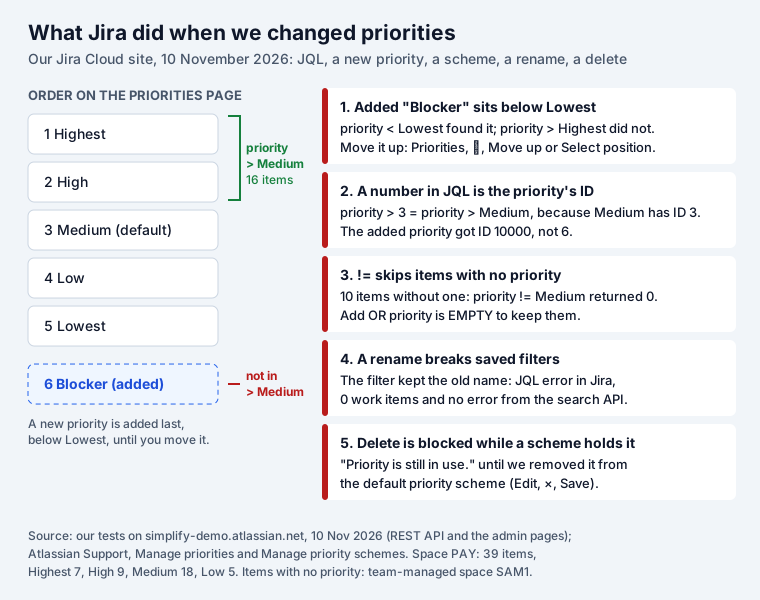
We added one called “Blocker (test)”. Jira gave it ID 10000 and put it last, below Lowest:
priority < Lowestfound our test work item with Blocker.priority > Highestfound nothing.ORDER BY priority DESClisted it after an item with Low.
So a team that adds Blocker for its worst bugs and keeps filtering on priority > Medium or
priority in (Highest, High) loses exactly those bugs. Move it before anyone uses it. The page says
so itself: “Add new priorities or edit the priority order by moving it up or down, or setting it to
a specific position number.” The ⋯ menu on each row has Move up, Move down and Select
position:
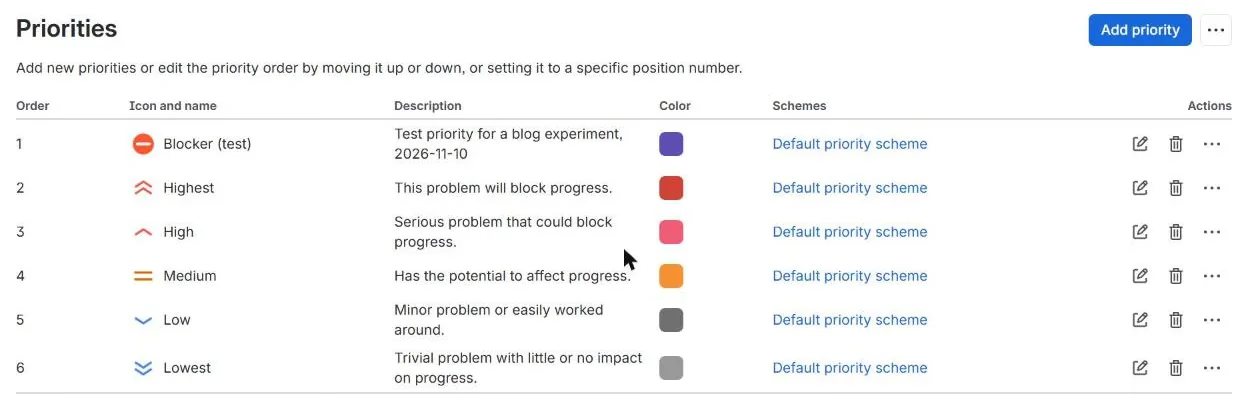
We moved ours to the top with the API (PUT /rest/api/3/priority/move, position First). From
then on priority > Highest found the Blocker item and ORDER BY priority DESC listed it first. Note
that Atlassian’s support page still says “you can’t change the order in which priorities are
displayed”; the page and the API both can.
Every new priority also joins the default priority scheme, which, as the next section shows, is what decides where it can be used.
Priority schemes: different levels per space
A priority scheme is a list of allowed priorities plus a default, attached to one or more spaces. Atlassian puts its two jobs simply: restrict the set of priorities for a space and “select a default priority that is assigned to all newly created work items in a space.” Without a scheme of its own, a space uses the default priority scheme, which holds every priority on the site.
The path is Jira settings, Work items, Priority schemes, Add priority scheme: name, priorities, a default, then the spaces. We made “Four levels (test)” with Highest, High, Medium and Low, set its default to Low and attached our business space TT. What happened:
- Jira asked what to do with work items whose priority was not in the scheme, and moved them as we said. TT-1 had Blocker and became Medium, our mapping; it did not get the scheme’s default.
- The create form in TT offered four priorities, and the default was Low. A new work item got Low.
- Setting Lowest, or Blocker, on a TT work item failed: “The priority selected is invalid.”
Use schemes when spaces really differ: a support space with P1 to P4, a product space with the five defaults. One scheme can serve many spaces, so you change a level once.
Priority in JQL: what works and what bites
We ran these on our space PAY (39 work items: 7 Highest, 9 High, 18 Medium, 5 Low):
| JQL | Result on PAY |
|---|---|
priority in (Highest, High) | 16 (Highest and High) |
priority > Medium | the same 16 |
priority >= High | the same 16 |
priority < Medium | 5 (Low) |
ORDER BY priority DESC | Highest first |
ORDER BY priority ASC | Low first |
priority > 3 | the same 16 (3 is Medium’s ID) |
priority = 1 | 7 (1 is Highest’s ID) |
> and < follow the order on the Priorities page, so they keep working when you rename levels,
and they change meaning the moment someone reorders them or adds one at the bottom. A list such as
priority in (Highest, High) is easier to read and does not move.
A number is an ID. priority > 3 works only because Medium happens to have ID 3. Our added
priority got ID 10000, not 6, and priority > 10000 returned almost everything on the site,
because by then it was the lowest priority. Use names.
!= skips work items with no priority. In the team-managed space with 10 work items and no
priority, priority != Medium returned 0, so did priority not in (Medium) and priority < Highest.
(priority != Medium OR priority is EMPTY) returned all 10. We hit the same thing building the four
queries of our Eisenhower matrix, which is why its filters end with
OR priority is EMPTY.
Priority does not order your backlog. Rank does. Changing an item to Highest leaves it where it is, and sorting a board’s filter by priority switches manual ranking off. We tested both in our Jira backlog guide.
Renaming a priority breaks saved filters
Teams rename Highest to P1 more than they add new levels, so we tested that too. We saved a filter
priority = "Blocker (test)" ORDER BY created DESC, then renamed the priority to “P0 (test)” and
gave a work item that priority.
The filter did not follow. Its JQL still said “Blocker (test)”. Opened in Jira, it showed an error and an empty list:
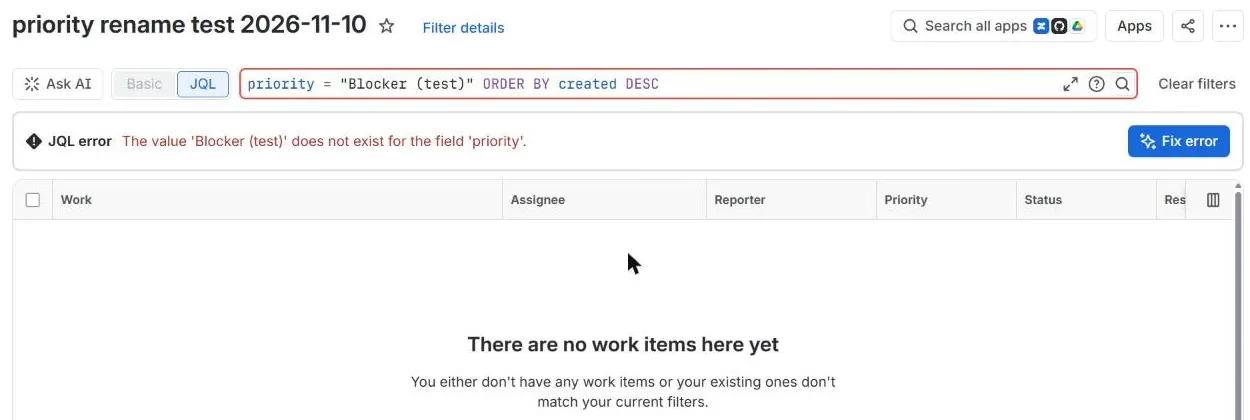
The value 'Blocker (test)' does not exist for the field 'priority'. A person opening the filter
sees the error. A script or an integration calling the search API with the same JQL does not: it got
0 work items and no error message. Only the strict JQL check (/rest/api/3/jql/parse) reported
the problem. Queries written with the new name, or with the ID (priority = 10000), found the work
item.
Before you rename: list the filters that mention the old name, rename, then update them in the same hour. Filters behind boards and dashboards are the ones people notice last.
Deleting a priority
Atlassian says you cannot delete a priority that spaces still use. In practice that means every priority, because the default priority scheme holds all of them and every space without its own scheme uses it. Our test priority was on no work item and in no other scheme, and the delete still failed with “Priority is still in use.” The delete button in Jira explained it: remove the priority from 1 priority scheme first.
That scheme was the default priority scheme. Atlassian’s support page says “You can’t edit this scheme”, but on our site Edit opened it with the name and description locked and a remove button next to each priority. We removed the test priority there, saved, and the delete went through as a background task. If you ever add a priority you do not want, do it in that order: move its work items to another level, take it out of every scheme including the default one, then delete it.
Priority, severity and the impact matrix
People search for “priority vs severity in Jira” because other trackers have both. Jira has one field. Our site, with Jira Software, business spaces and Jira Service Management, had no Severity field, only an Impact field that Jira Service Management adds.
Severity is how bad a problem is. Priority is how soon your team deals with it. A typo on the pricing page is low severity and may still be high priority the week before a launch. Atlassian’s service desk guide makes priority a result of two inputs: it “is usually based on the impact and urgency of a work item”, where urgency “is a measure of the time for an incident to significantly impact your business”. Jira Service Management can set priority from impact and urgency with automation; customer requests start at Medium.
For a software team, three options work:
- Priority only, with your own descriptions per level (the table above). Simple, and every board and filter already understands it.
- Priority plus a Severity select field for bugs, when QA and product disagree often enough to need both on record.
- A score that sets the priority. Rate items with RICE or WSJF, then set Priority from the result. Our free RICE & WSJF calculator does both and suggests a Jira priority for each item, and Priority Board (below) keeps the score on each work item; the Eisenhower matrix sorts by due date and priority instead.
Seeing work by priority
Most teams want to see work grouped by priority without losing the order they planned. Jira gives you a filter sorted by priority, or a board grouped into swimlanes by a query.
Our Priority Board shows a space as one column per priority,
plus a No priority column while some work items have none, so the items != misses stay visible.
Dragging a card to another column sets the real Priority field, as you; dragging it up or down
changes its Rank, so the order inside a column is the order of your Jira backlog. Since November 2026
it can also score each work item with RICE, WSJF or ICE: the score shows on the card, is saved on the
work item so JQL finds it (priorityScore > 20), and cards can be sorted by it inside each column.
It does not add or rename priority levels. It is free for up to 10 users;
install it from the Atlassian Marketplace.
How we tested
- Our Jira Cloud site (simplify-demo.atlassian.net), 10 November 2026, as a Jira admin, with the REST API from the browser session and the admin pages. 11 spaces: company-managed software (PAY), company-managed business (TT), two team-managed software spaces and Jira Service Management spaces.
- Priorities and schemes read with
GET /rest/api/3/priorityandGET /rest/api/3/priorityscheme; JQL run withPOST /rest/api/3/search/jqland checked with/rest/api/3/jql/parse. - Added “Blocker (test)” with
POST /rest/api/3/priority, moved it withPUT /rest/api/3/priority/move, renamed it withPUT /rest/api/3/priority/10000; scheme “Four levels (test)” created withPOST /rest/api/3/priorityschemeand a mapping for the two priorities it left out. - Afterwards we deleted the test scheme, the filter and the test priority; the site is back to the five default levels. Atlassian quotes are from its support pages Manage priorities, Manage priority schemes and What are priority levels in Jira Service Management, read the same day.
Frequently asked questions
What are the default priority levels in Jira?
Five, from top to bottom: Highest ("The problem will block progress"), High ("Serious problem that could block progress"), Medium ("Has the potential to affect progress"), Low ("Minor problem or easily worked around") and Lowest ("Trivial problem with little or no impact on progress"). The wording is Atlassian's. Medium is the default for new work items in the default priority scheme.
What is P1, P2, P3, P4 in Jira?
Jira Cloud has no P1 to P4 out of the box; its levels are named Highest to Lowest. Many teams rename them to P1 (Highest), P2 (High), P3 (Medium) and P4 (Low), and Jira Service Management's alerts use P levels such as P4. Renaming is one edit on the Priorities page, but saved filters keep the old name: on our site a filter written with the old name showed a JQL error and no work items after the rename. Search your filters for the old name and update them the same day.
What is the difference between priority and severity in Jira?
Severity is how bad a problem is; priority is how soon your team will deal with it. Jira only has the Priority field. Our site, with Jira Software, business spaces and Jira Service Management, had no Severity field at all, only an Impact field that Jira Service Management adds. Atlassian's service desk guide says priority is "usually based on the impact and urgency of a work item". If you need severity separately, add a select field and keep Priority for the order of work.
How do I change priority levels in Jira?
A Jira admin goes to Jira settings, Work items, Priorities. There you add a priority, edit its name, description, colour and icon, and change the order with the ⋯ menu (Move up, Move down, Select position). A new priority is added at the bottom, below Lowest, so move it to where it belongs before anyone uses it in JQL. To give a space only some levels, create a priority scheme.
What is the default priority for new work items in Jira?
Medium, set by the default priority scheme. On our site, work items created through the API without a priority got Medium in both a company-managed and a team-managed space. A priority scheme can set another default: after we gave a space a scheme with Low as its default, a new item there got Low. Jira Service Management sets customer requests to Medium.
How do I find high priority work items with JQL?
Use priority in (Highest, High), or priority > Medium, which means higher than Medium. Both returned the same 16 work items on our test space. ORDER BY priority DESC puts Highest first. If some work items have no priority and you are excluding a level, add OR priority is EMPTY, because priority != Medium skips them.
Can a Jira space use only some priorities?
Yes, with a priority scheme: Jira settings, Work items, Priority schemes, Add priority scheme, pick the priorities and a default, then the spaces. Work items whose priority is not in the scheme must be moved to one that is. In our test, setting a priority outside the scheme failed with "The priority selected is invalid."
Keep reading
- Jira, JSM and the Marketplace · 10 minJira Velocity and Burndown Charts: What They Count, Tested
- Jira, JSM and the Marketplace · 13 minJira Sprints: Start, Complete and What Counts, Tested
- Jira, JSM and the Marketplace · 11 minJira Labels vs Components: When to Use Each, Tested
- Free toolRICE & WSJF calculator