Jira Export to Excel: Every Option and the 10,000 Limit
On this page
The finance team asks for “everything closed this year, in Excel”. The export opens with exactly 1,000 rows, and a forum thread from 2019 says that is the limit and there is nothing to do. In Jira Cloud in 2026 that is no longer true, and the workaround the old threads recommend is now deprecated.
This guide is the current state, read from Atlassian’s own knowledge base and checked in the Jira Cloud menus on 13 November 2026.
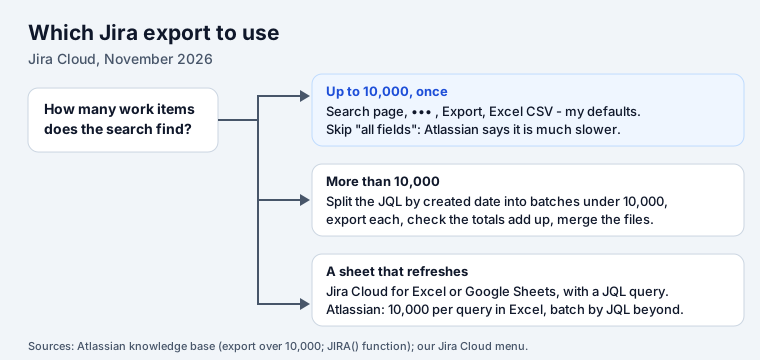
Short answer: search for the work items, open ••• > Export > Excel CSV - my defaults, and
open the file in Excel. Jira Cloud’s CSV export takes up to 10,000 work items. For more, split
the JQL by created date into batches under 10,000 and merge them. The old
&pager/start=1000 URL trick is deprecated as of March 2026.
Where the export is now
On the search page (Filters, then View all work items, or any saved filter) the export lives under the ••• button at the top right, then Export. On our Jira Cloud site the menu held 13 export formats, plus a shortcut to make a dashboard gadget:
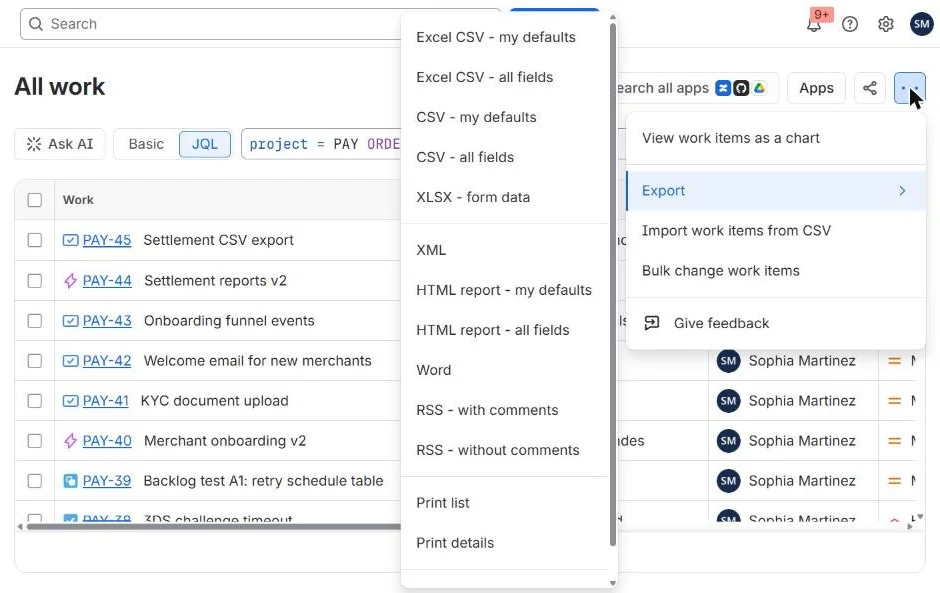
| Option | Use it for |
|---|---|
| Excel CSV - my defaults | Excel, with your usual columns. The everyday choice |
| Excel CSV - all fields | Excel, every field. Slow and wide |
| CSV - my defaults | Other tools: Google Sheets, a script, a BI import |
| CSV - all fields | A full dump for an import elsewhere |
| XLSX - form data | Going by its name, Jira Forms data, not the list of work items |
| XML | Machine-readable, with more structure than CSV |
| HTML report - my defaults, HTML report - all fields | A page to read or send |
| Word | A document to edit |
| RSS - with comments, RSS - without comments | A feed reader |
| Print list, Print details | Paper or PDF |
| Create dashboard gadget | Not an export: puts the search on a dashboard |
There is no native .xlsx of work items. “Excel CSV” is a text file that Excel opens.
The limit: 10,000, not 1,000
Most pages that rank for this question still say 1,000, because that was the cap for years. Atlassian’s current knowledge base article says: “In Jira Cloud, exporting up to 10,000 work items using the asynchronous Export CSV feature from the Issue Navigator is supported.”
The same article adds advice worth following on big exports:
- Narrow the JQL first, so only the work items you need go in.
- Prefer “my defaults” to “all fields”. The all-fields options “can significantly slow down the process and result in large files that are difficult to manage”.
- Expect a wait. “Asynchronous” means Jira builds the file in the background.
The URL workaround is deprecated
For years the fix for the 1,000 cap was to copy the export URL and add &pager/start=1000,
&pager/start=2000 and so on, one file per thousand. Atlassian’s article now marks it: “This
workaround is deprecated as of March 2026”. Each of those batches was capped at 1,000 work items,
and the article warns against mixing them with exports from the menu, because that “can lead to
duplicate or missing work items”. If a script or a colleague’s bookmark still does this, move it to
JQL batches.
More than 10,000: split with JQL
Atlassian’s replacement is to divide the search into batches under 10,000 with JQL and export each. Its own example, for a space with 25,000 work items:
| Batch | JQL |
|---|---|
| 1 | project = MYPROJECT AND created >= "2026-01-01" AND created < "2026-07-01" ORDER BY created DESC |
| 2 | project = MYPROJECT AND created >= "2025-06-01" AND created < "2026-01-01" ORDER BY created DESC |
| 3 | project = MYPROJECT AND created < "2025-06-01" ORDER BY created DESC |
Rules that keep the batches clean:
- Split on created. It “doesn’t change after the work item is created”, so no work item moves between batches while you export. Updated and resolved can.
- Use
>=for the start and<for the end. Then a work item created on the boundary day lands in exactly one batch. Never=on a date: in JQL it matches only midnight (see JQL dates). - Check the counts. The search page shows the total for each batch; they must add up to the original search.
- Batches can be other fields when dates do not work: one space at a time, one type, one status.
The same JQL works in a saved filter, so a monthly export becomes three clicks. Every operator and field you might split on is in the JQL cheat sheet.
A sheet that stays up to date
If the export is a weekly ritual, an add-in saves the copying. Atlassian’s knowledge base names it
as the first workaround for big exports: on the search page, “click on Apps and select the desired
option”, Google Sheets or Microsoft Excel. In Excel the Jira Cloud add-in takes a JQL query as a formula,
=JIRA.JQL("project = AV order by key Asc", "", 1000) in Atlassian’s example. Its article on large
imports says: “There is a limit of 10K issue that can be imported using Jira plugin in MS Excel”,
and that batches must again be made in JQL, because “it’s not possible to specify a starting index”.
What the export will not give you
- Sprint dates. Jira has no field for a sprint’s start or end date, so a “late against sprint end” sheet needs a lookup by hand. Our app JQL Blocks adds Sprint start date, Sprint end date and Sprint complete date as real Jira fields, which then appear in searches, columns and CSV exports, and its own results list exports to CSV too.
- History. An export is today’s values. “When did it move to Done” needs JQL with
CHANGED(JQL WAS and CHANGED) or the work item’s history. - Work items you cannot see. The export runs with your permissions, like the search.
Sources
- Atlassian knowledge base: Export over 10,000 work items in Jira Cloud (10,000 limit, deprecated URL workaround, JQL batches), read 13 November 2026.
- Atlassian knowledge base: How to use JIRA() function to import large number of issues with JQL in MS Excel.
- The Export menu on our Jira Cloud test site (Standard plan), 13 November 2026.
Frequently asked questions
How do I export Jira issues to Excel?
Search for the work items (Filters, View all work items, or any filter), open the ••• menu at the top right, choose Export, then Excel CSV - my defaults. Open the file in Excel. For a sheet that refreshes, use the Jira Cloud for Excel add-in with a JQL query instead.
How many issues can I export from Jira Cloud?
Up to 10,000 work items per export with the CSV export from the search page, Atlassian's knowledge base says. Many older pages still say 1,000; that was the old cap, and it still applies per batch to the URL workaround, which Atlassian deprecated in March 2026.
How do I export more than 10,000 issues from Jira?
Split the search with JQL into batches under 10,000, export each and merge the files. Atlassian recommends the created date, because it does not change: for example project = PAY AND created >= "2026-01-01" AND created < "2026-07-01". Check that the batch totals add up to the full search.
Can Jira export directly to an .xlsx file?
Not for a list of work items. The Export menu offers Excel CSV and CSV, which Excel opens, plus XML, HTML, Word and print views. The one XLSX option, "XLSX - form data", is named for Jira Forms data, not the list of work items.
What is the difference between Excel CSV and CSV in Jira?
Both are comma-separated text files. Jira labels one for Excel, and each comes as "my defaults" or "all fields". Atlassian advises against "all fields" for big exports: it "can significantly slow down the process and result in large files that are difficult to manage".