Automated Jira Reports in 2026: 6 Native Ways, Their Limits
Every Monday someone screenshots the team’s Jira dashboard and pastes it into an email, because Jira Cloud cannot send one: JRACLOUD-15260, “Add ability to subscribe dashboards”, has been open since 18 July 2008 (185 votes, still “Gathering Interest” on 26 October 2026).
Jira can send a report on its own in six other ways, without an app. Pick by the report you need:
| The report you want | Native route | The limit you will hit |
|---|---|---|
| A plain list of work items in people’s inbox | Filter subscription | Only the first 200 results are sent |
| A digest with counts, in email, Slack or Teams | Automation rule | Lookup returns up to 100 work items; 3 steps a run |
| A Confluence page that appears every Friday | Automation: Create Confluence page | Same 100-item lookup |
| A written summary, not a list | Automation: Use Rovo | Paid plans only; costs Rovo credits |
| Dashboard charts as PDF or CSV | Atlassian Analytics subscription | Enterprise only; 25 MB; sent in UTC, up to 60 min late |
| Numbers for a spreadsheet or BI tool | Jira Cloud for Sheets, scheduled | Hourly in Atlassian’s example; 5,000 work items |
What none of them does: email a Jira dashboard or its gadgets. For that you send a link, rebuild the dashboard in Atlassian Analytics (Enterprise), or install an app.
Every limit on this page comes from Atlassian’s own documentation, read on 26 October 2026; the links are next to each one. The costs in automation steps are our calculation from Atlassian’s published rules.
1. A plain list by email: filter subscriptions
The simplest route, and the right one for “send me what is overdue every Monday”.
- Search for the work items and save the search as a filter — Atlassian is explicit: “Your search must be saved as a filter if you want to create an email subscription for it.”
- Open the filter, select Details next to its name, then New subscriptions.
- Choose the recipient: yourself or a group. You can only pick a group you belong to, and you need the “Manage Group Filter Subscriptions” global permission.
- Choose the schedule. Advanced takes a cron expression.
A JQL that makes a useful Monday email:
project = OPS AND duedate < startOfDay() AND statusCategory != Done ORDER BY duedate ASCand a cron for 9:00 every Monday — fields are second, minute, hour, day of month, month, day of
week, and Atlassian’s own example 0 30 07 ? * 3,5 means “7:30 am every Tuesday and Thursday”:
0 0 9 ? * 2Three things the documentation says that surprise people:
- Only 200 work items arrive. “Note, only the first 200 results of a filter are sent.” Sort the filter so the 200 that matter come first, or split it by team.
- Each recipient gets their own report. “The search results will be evaluated with the recipient as the current user.” A group subscription is a set of personal emails, each with what that person may see. A distribution list does not get this treatment.
- Big groups are slow. Atlassian warns that a subscription for a group with many members “can take a long time to generate the emails to be sent”.
(Manage filters, Atlassian Support; cron expressions for a filter subscription)
2. A digest people read: an automation rule
A subscription sends the filter’s results as they are. When you want a sentence on top (“7 work items are overdue”), grouping, a Slack channel instead of an inbox, or no email at all on a quiet week, build an automation rule with four parts:
- Trigger: Scheduled. Every Monday at 9:00, say.
- Action: Lookup work items, with your JQL. It will “search for up to 100 work items using a JQL query”.
- Condition:
{{smart values}}condition —{{lookupIssues.size}}greater than0, so an empty week sends nothing. - Action: Send customized email, Send Slack message or Send Microsoft Teams message, with this message:
{{lookupIssues.size}} work items are overdue in OPS:

{{#lookupIssues}}
* {{key}} {{summary}} ({{assignee.displayName}}, {{status}}) {{url}}
{{/}}
Every smart value here is from Atlassian’s list for lookupIssues: {{key}}, {{summary}},
{{assignee.displayName}}, {{status}}, {{url}}, and .size from the list functions
(issue smart values,
list smart values).
Two limits to plan for:
- The lookup stops at 100. If the email says “100 work items are overdue”, there are probably more. Write the JQL for a question with a short answer — overdue this week, created since Monday — rather than “everything open”.
- Email on the Free plan is capped. The plain Send email action is marked “Deprecated” in favor of Send customized email, which has a “Free plan limit: 100 emails in 24 hours” (Jira automation actions).
This rule runs three steps each time: the trigger, the lookup and the message (the condition is a fourth when you add it). That number matters more than it used to — see what a rule costs.
3. A page that keeps the history: Create Confluence page
Swap the last action of the rule for Create Confluence page, which “creates a Confluence page (or
blog) in an Atlassian Cloud site of your choosing”. Each Friday’s run leaves a dated page with the
same {{#lookupIssues}} list in its body.
This suits reports people come back to: a release log, an audit trail of what was open at the end of each sprint, a page your manager can comment on. An email is read once; a page tree is a record.
If you only need the current list, not the history, a page with the Jira work items macro is simpler: it can “search and display Jira work items in a list” (Atlassian Support). But nobody is notified — someone has to open the page.
4. A summary instead of a list: Use Rovo
The list tells a manager what is open; it does not say what it means. On Standard, Premium and Enterprise, the Use Rovo action adds “a simple AI prompt to an automation flow”. Put it between the lookup and the message:
Summarize for a weekly status email, in five bullet points,
what changed and what is at risk. Work items:
{{#lookupIssues}}
{{key}} | {{summary}} | {{status}} | {{assignee.displayName}}
{{/}}
Then send {{rovoResponse}}, where the action stores its answer.
What to know before you rely on it:
- It only knows what you pass in. The action “can only access data provided via smart values and the prompt itself” and “can’t perform actions or access external pages or tools”. If a field is not in the prompt, the summary cannot mention it.
- It is paid in Rovo credits, not automation steps. Rovo components “are billed separately under Rovo credits”. Atlassian lists 25 credits per user a month on Standard, 70 on Premium and 150 on Enterprise. Rovo is not on Jira Free.
- It writes a draft. For a status report that goes to a client, send it to yourself first.
(What is the Use Rovo action?; Jira plans)
5. Charts as a PDF: Atlassian Analytics
This is the closest Atlassian comes to “email the dashboard” — but it is an Atlassian Analytics dashboard, not a Jira one, and Analytics comes with Jira Enterprise. A subscription will “automatically send an email containing a PDF copy or CSV files of the dashboard”:
- daily, weekly or monthly, at an hour you set “in UTC time”;
- possibly “delayed up to 60 minutes after the scheduled time”;
- only to people who have access to the dashboard;
- with “a size limit of 25 MB”.
On Free, Standard and Premium, the honest workaround for a Jira dashboard is the rule from section 2 with a link to the dashboard in the message. The reader clicks through and sees live gadgets.
6. Data for a spreadsheet: Jira Cloud for Sheets
When the report is someone’s spreadsheet — a cost model, a pivot table, a BI tool that reads a sheet — Atlassian’s own Google Sheets add-on can reload the data on a schedule. Atlassian’s support article shows the load set to hourly, expiring after 12 months, with “the maximum number of issues is 5000”. Only starred filters can be imported.
The sheet then does the charting and the sharing. The cost: the numbers now live outside Jira, with the sheet’s own sharing settings.
What a scheduled report costs from 3 December 2026
Atlassian now counts automation in steps: “an automation step is a single executed part of an automation flow”. Every trigger, condition and action that runs is a step, and “on December 3, 2026, extra usage billing takes effect” for sites that go over their allowance (How is your automation usage calculated). The allowances on the Jira pricing page:
| Plan | Automation steps a month |
|---|---|
| Free | 150 for the whole subscription |
| Standard | 400 per user |
| Premium | 750 per user |
| Enterprise | 1,000 per user |
Atlassian’s own plans guide still quotes the older unit, rule runs (100 a month on Free, 1,700 on Standard), so check the usage meter in Atlassian Administration rather than either page.
One rule in the documentation decides what a report costs: even when a trigger finds no match, “the trigger execution itself is charged as one step”. A rule that wakes up and finds nothing is not free.
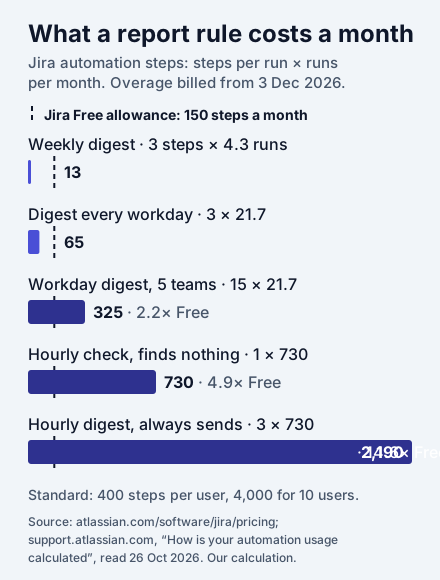
How we counted: steps per run × runs per month, with a month of 52 ÷ 12 ≈ 4.3 weeks, 21.7 workdays or 730 hours. A digest is three steps (trigger, lookup, message).
What follows from it:
- A weekly report is cheap. Even on Free, a weekly digest uses under a tenth of the allowance; a digest every workday uses 43 % of it.
- Frequency is what costs. The hourly “anything new?” rule is the expensive one, and most of its runs find nothing. Make it daily, or trigger on the event instead (a work item created, a status changed).
- One rule per team multiplies. Five copies of a 65-step rule are 325 steps. On Free that is over the limit; on Standard with 10 users it is 8 % of 4,000.
- AI summaries do not add steps. The Use Rovo action spends Rovo credits instead.
Atlassian’s page does not say how a branch that runs once per work item is counted, so we left per-item rules out of the chart. If your report rule branches, run it once and read its cost in the rule’s audit log before you schedule it hourly.
The limits in one place
| What | Limit | Source |
|---|---|---|
| Filter subscription email | first 200 results | Manage filters |
| Lookup work items (automation) | up to 100 work items | Automation actions |
| Send customized email, Free plan | 100 emails in 24 hours | Automation actions |
| Automation allowance, Free | 150 steps a month | Jira pricing |
| Trigger with no match | still 1 step | Usage calculation |
| Analytics dashboard subscription | 25 MB, UTC, up to 60 min late | Dashboard subscriptions |
| Jira Cloud for Sheets, scheduled load | hourly; 5,000 work items | Atlassian KB |
| Jira dashboard subscription | not available (requested 2008) | JRACLOUD-15260 |
The report automation cannot write: your own status update
All six routes report on work items: what is open, overdue, done. The report many people still write by hand is a different one — “what did I do this week?” — and the answer is scattered across the comments you wrote, the work items you worked on and the time you logged.
That is what Report Assistant does, our app for Jira. You ask its Rovo agent for today’s or last week’s report; it reads your Jira activity as you — work items you are assigned to or reported, your comments, your logged time — and writes it in your own template, for example yesterday / today / blockers. Weekly reports can be rolled up from your daily ones, colleagues you choose see them side by side, and Copy puts the Markdown into Slack, Confluence or an email.
To be clear about what it is not: it does not send anything on a schedule — you ask, it writes, you paste — and it needs Rovo on the site (without Rovo you can still write and share reports by hand). For the team digests above, the native routes are the right tool.
- Report Assistant for Jira on the Atlassian Marketplace
- If your Monday email is mostly about due dates, Deadline Tracker shows what is overdue and due this week across projects on one board.
Frequently asked questions
How do I automate reports in Jira?
For a plain list of work items by email, subscribe to a saved filter (Filters → Details → New subscriptions). For a formatted digest in email, Slack, Teams or a Confluence page, build an automation rule: a Scheduled trigger, the Lookup work items action with your JQL, then a send or create action that prints {{#lookupIssues}} … {{/}}. For charts as PDF, Atlassian Analytics dashboard subscriptions need Jira Enterprise.
Can Jira email a dashboard on a schedule?
Not a Jira dashboard. The suggestion JRACLOUD-15260, "Add ability to subscribe dashboards", has been open since July 2008 with status Gathering Interest. On the Enterprise plan, Atlassian Analytics dashboards can be emailed as PDF or CSV. On other plans, an automation rule can email a link to the dashboard, or a Marketplace app can send it.
How many work items can a Jira filter subscription send?
Only the first 200 results of the filter are sent, and the search runs as each recipient, so everyone gets the work items they are allowed to see. An automation rule's Lookup work items action returns up to 100 work items.
Does a scheduled automation rule use up my allowance when it finds nothing?
Yes. Atlassian counts usage in steps, and a trigger that finds no match is still charged as one step. An hourly rule that never finds anything uses about 730 steps a month, nearly five times the Jira Free allowance of 150.
Can Rovo write a Jira status report automatically?
On paid plans, yes. Add the Use Rovo action to a scheduled rule, pass it the work items from Lookup work items in the prompt, and send {{rovoResponse}} by email or Slack. Rovo is billed in Rovo credits, not automation steps, and is not available on Jira Free.
Is there a limit on emails sent by Jira automation?
On the Free plan, the Send customized email action is limited to 100 emails in 24 hours. Filter subscriptions to a large group can also take a long time to generate, Atlassian warns, because a separate email is built for each member.