Legal Hold Desk for Jira and Confluence – Step-by-Step Guide
How to use Legal Hold Desk step by step: open it, try the demo matter, open a matter, find custodians, send notices, watch the courts, keep what is in scope and verify the hold log.
Legal Hold Desk keeps what a lawsuit needs in Jira and Confluence and proves it was kept. This guide walks through every screen in the order you will use them.
How to read the pictures. Every screenshot comes from a real Jira site. The red boxes with numbers show where to look or click. Number 1 in the picture is step 1 under it, number 2 is step 2, and so on.
Get started in 3 minutes
- Install Legal Hold Desk from the Atlassian Marketplace for Jira and Confluence (a site admin).
- Open the Jira project you use for legal matters and choose Legal holds in the project’s sidebar.
- On the Get started tab press Take me there under Load the demo matter, pick a Confluence space, and load it.
- Trash one of the demo pages in Confluence and watch it come back within seconds. Then Verify chain on the Hold log tab.
Jira and Confluence. Legal Hold Desk needs Jira, and Jira Service Management for the custodian notices. Install it in Confluence too to hold pages: the guard, Pick a space and the demo matter work on Confluence spaces. Without Confluence a matter can hold Jira projects only.
1. Open Legal Hold Desk
- Open the project and click Legal holds in the sidebar. If the sidebar is hidden, click the sidebar icon in the top-left corner of Jira first.
The page has eight tabs: Matters, Who holds the data, Notices, Courts, Preservation, Hold log, Get started and Under the hood.
2. Try it first
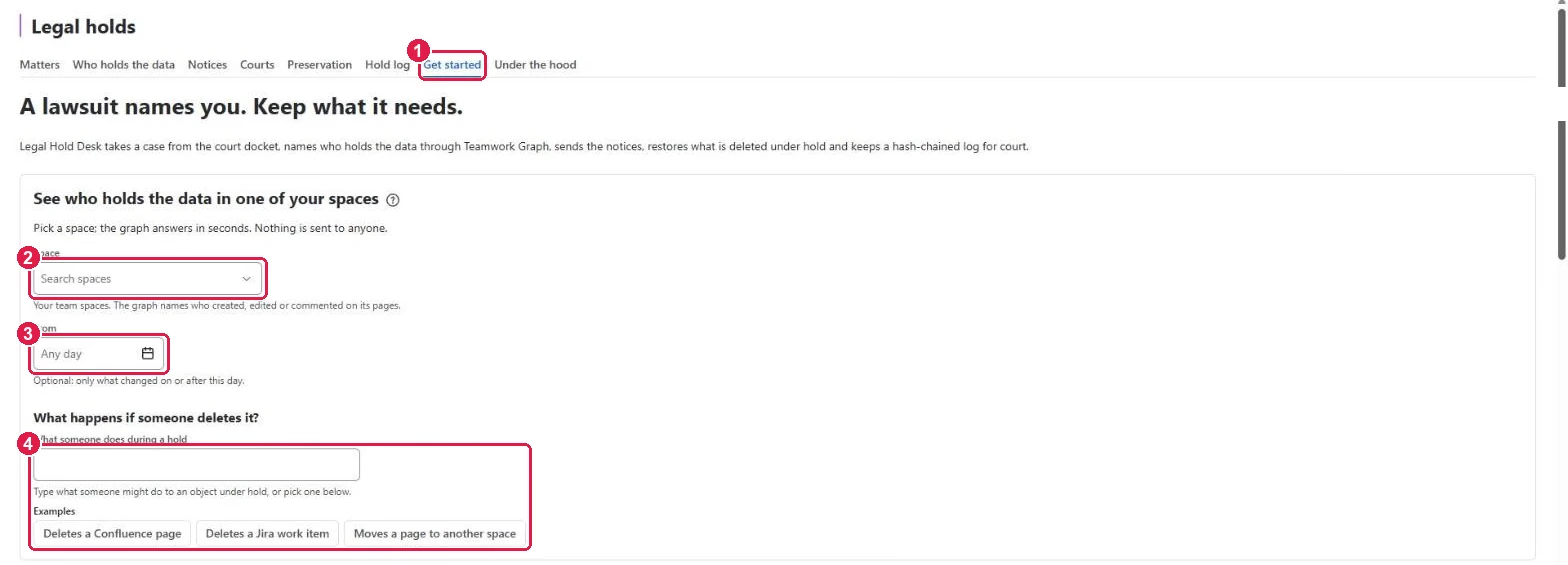
- Click the Get started tab.
- See who holds the data in one of your spaces: pick a Space. Teamwork Graph names who created, edited or commented on its pages, in seconds. Nothing is sent to anyone.
- From (optional): only what changed on or after this day.
- What happens if someone deletes it? Type what someone might do, or click an example, to see what the app does under a hold.
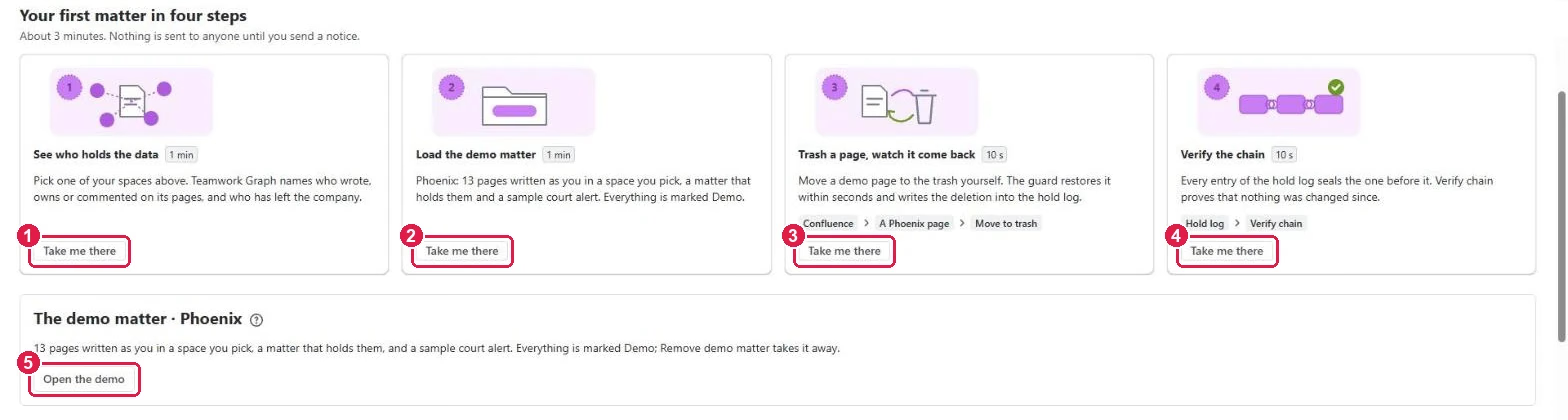
Your first matter in four steps — each card has Take me there:
- See who holds the data — pick one of your spaces above.
- Load the demo matter — Phoenix: 13 pages written as you in a space you pick, a matter that holds them and a sample court alert. Everything is marked Demo.
- Trash a page, watch it come back — in Confluence, open a Phoenix page and Move to trash. The guard restores it within seconds and writes the deletion into the hold log.
- Verify the chain — Hold log → Verify chain proves nothing was changed.
- Open the demo opens the demo matter. Remove demo matter takes it all away.
3. Open a matter
- Click the Matters tab.
- Click New matter. Give it a name and choose the scope: the Confluence spaces and Jira projects (and optionally a date range) the hold covers. Each matter is a Jira work item with its own hold log.
- The hold log card of the newest matter: Verify chain, Download the hold log and Chain receipt (PDF). Kept since the letter says the chain has held since the hold began.
- Active holds, Released and Hold log entries at a glance.
- Open Courts — the last court search and how many new cases it found.
- Matters: every matter with its status and number of log entries. Click a key to open its work item.
To end a hold, Release it from the matter. The log stays.
4. Find who holds the data
- Click the Who holds the data tab.
- Pick the Matter.
- Ask the graph again after the scope changed. The line next to it says when the graph was asked last.
- The graph: the matter in the middle and each custodian around it. Click a person to highlight their objects.
- Why each person: whether they are still with the company and why they are in scope — for example edited 16 pages.
5. Send the hold notices
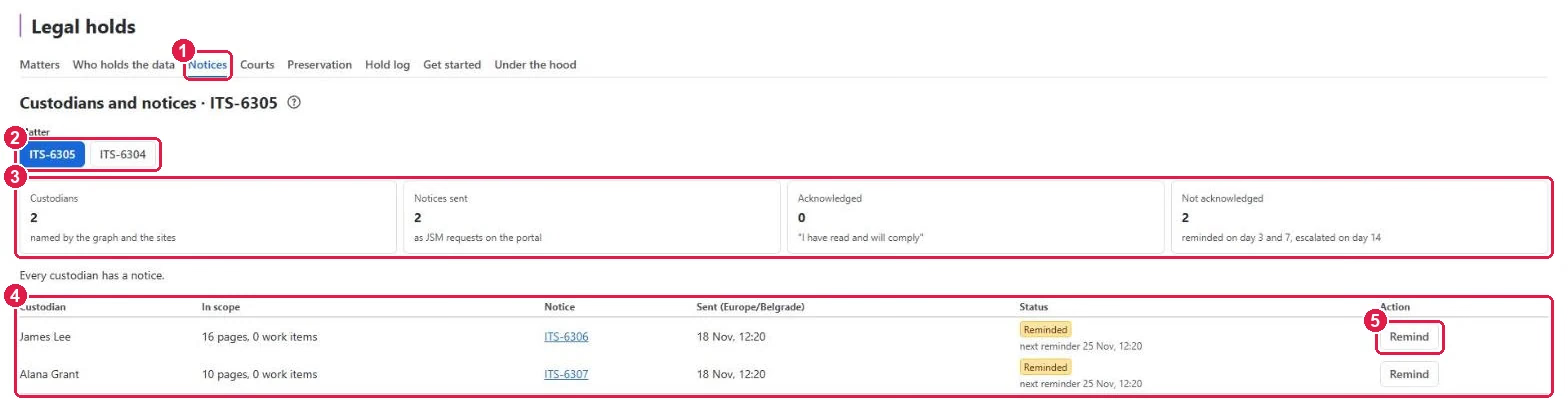
- Click the Notices tab.
- Pick the Matter.
- Custodians, Notices sent, Acknowledged and Not acknowledged.
- Each custodian: what of theirs is in scope, their notice (a Jira Service Management request), when it was sent and its status. Reminders go out on day 3 and day 7; on day 14 the hold is escalated.
- Remind sends a reminder now.
The custodian’s side. The custodian opens the notice on the help center, reads it and presses I have read and will comply. Or they object in their own words (up to 600 characters); counsel then decides to keep or remove them, and the decision goes into the log.
6. Watch the courts
The Courts tab lists the newest US federal cases that name a party you watch, from CourtListener (the Free Law Project’s public register), searched once an hour. For each case: Open a matter, Link to a matter, or Not us.
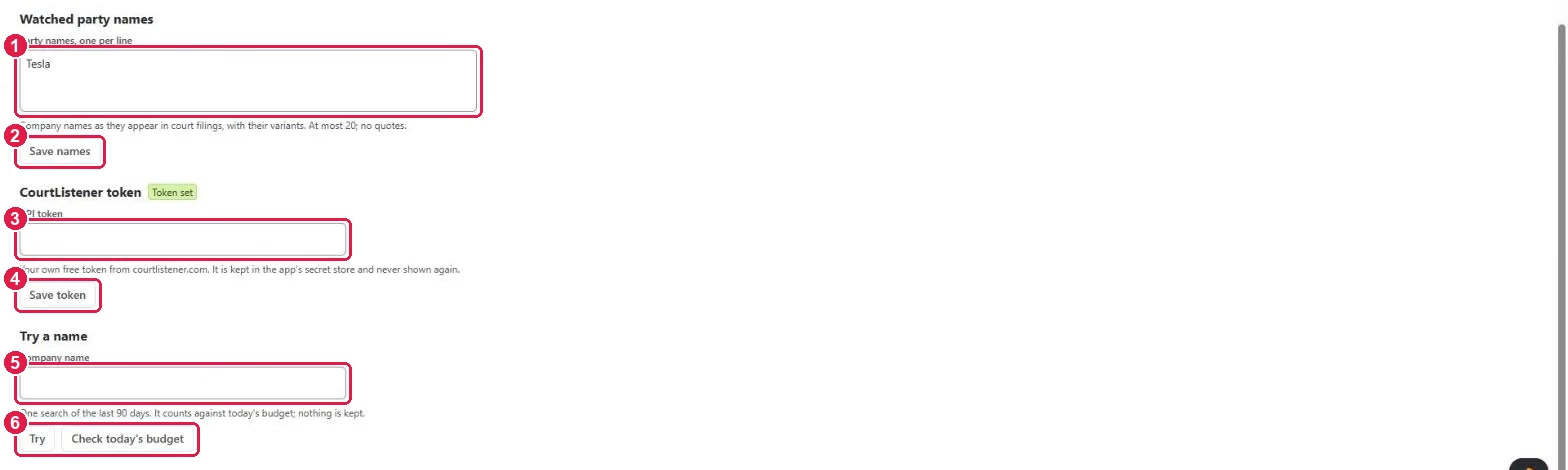
- Watched party names: your company’s names as they appear in court filings, one per line, with their variants. At most 20; no quotes.
- Press Save names. The next hourly search uses them.
- CourtListener token (a project admin, once). Until a token is saved, the app shows the steps:
- Click Open CourtListener sign-up and create a free account. Confirm your email if CourtListener asks.
- Signed in, click Open your API token page (on your CourtListener profile, See Your Token).
- Copy the token and paste it into API token.
- Press Save token. It is kept in the app’s secret store and never shown again; the label says Token set.
- Try a name: one search of the last 90 days for a company name.
- Try runs it; Check today’s budget shows how many CourtListener calls are left today. A free token allows 125 calls a day; the hourly watch uses 24.
7. Keep what is in scope
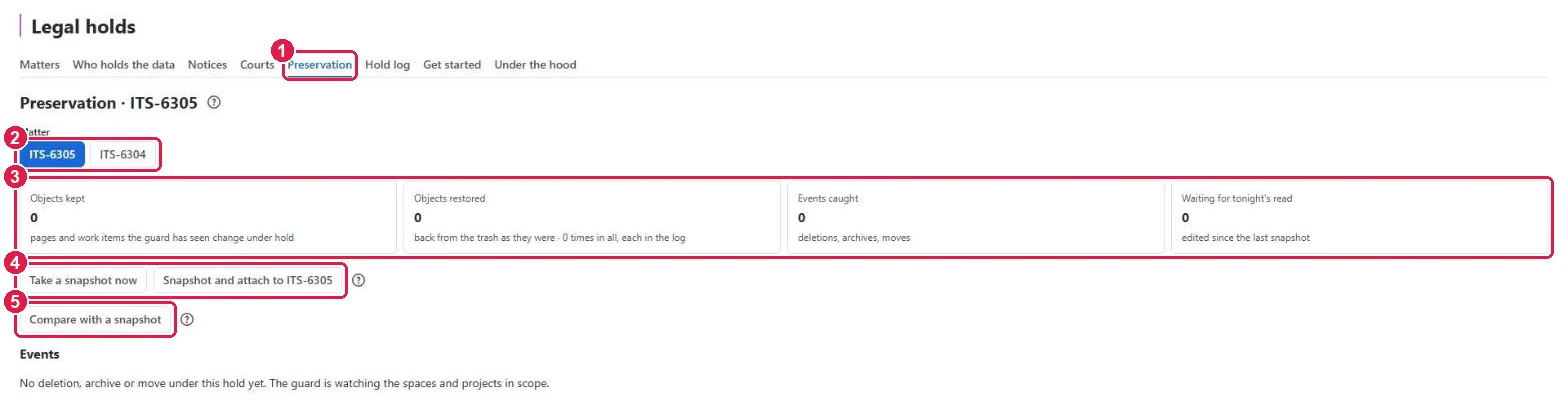
- Click the Preservation tab.
- Pick the Matter.
- Objects kept (pages and work items changed under hold), Objects restored (back from the trash as they were), Events caught (deletions, archives, moves) and Waiting for tonight’s read.
- Take a snapshot now saves the state of every object in scope; Snapshot and attach also attaches it to the matter’s work item.
- Compare with a snapshot shows what changed since.
Under it, Events lists every deletion, archive or move the guard caught.
8. Verify the hold log
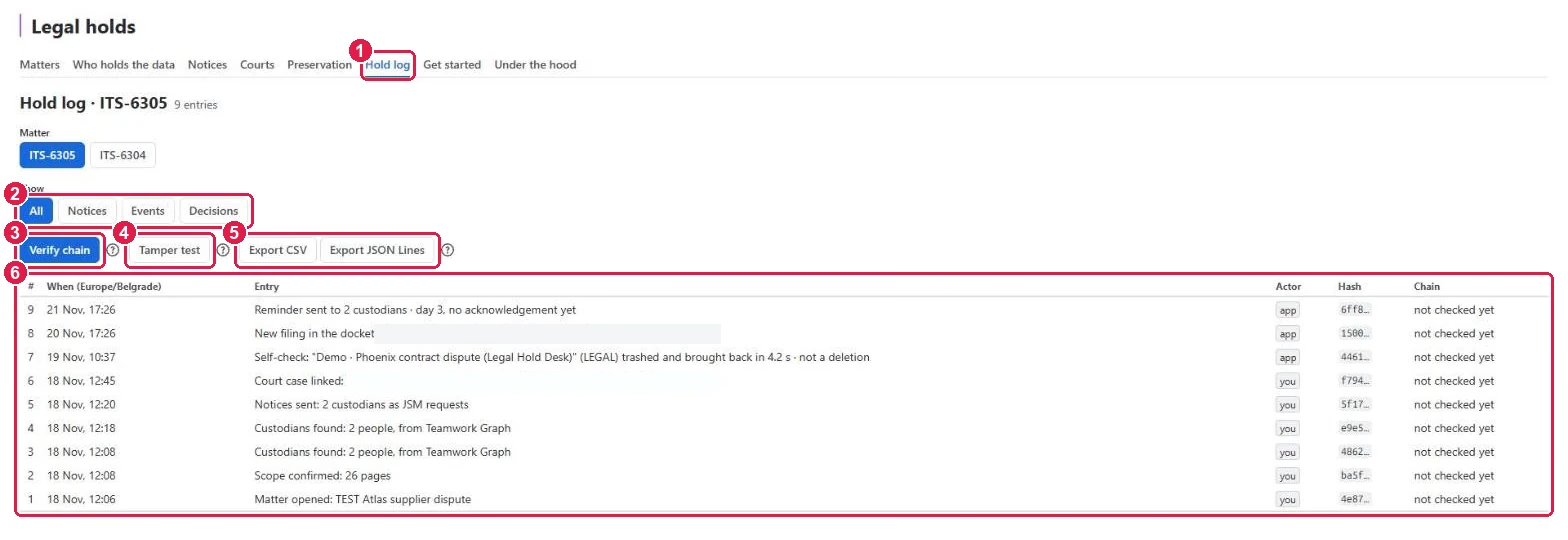
- Click the Hold log tab and pick the matter.
- Show all entries, or only Notices, Events or Decisions.
- Verify chain reads every entry again and recomputes its hash. Nothing is changed. The Chain column then says verified — or where the chain breaks.
- Tamper test shows, on a copy, what Verify chain says when one entry is changed.
- Export CSV or Export JSON Lines for counsel or your eDiscovery tool.
- The log: when, what, who (you — a person, app — the app itself), and each entry’s hash.
9. Rovo (optional)
On sites with Rovo, the Legal Hold Desk agent proposes a matter’s scope from the complaint, finds custodians, drafts the notice, reports a hold’s status, exports the log and verifies the chain — each only when you ask, and every change is yours to confirm.
Under the hood
The Under the hood tab shows how the app works, what it keeps and for how long, which permissions it asks for and why, and a self-check that tests every part on your site. Run it when something looks wrong and send us the result.
Need help?
Write to us through our Support Desk. Read how your data is handled in the privacy policy.