DORA Desk for Jira – Step-by-Step Guide
How to use DORA Desk step by step: open it, run the demo drill, read the regulator clocks, run a drill live, build the evidence package, choose scenarios and set up your entity.
DORA Desk runs your DORA resilience drill inside Jira, classifies incidents and keeps the regulator’s clocks. This guide walks through every screen in the order you will use them.
How to read the pictures. Every screenshot comes from a real Jira site. The red boxes with numbers show where to look or click. Number 1 in the picture is step 1 under it, number 2 is step 2, and so on.
Get started in 3 minutes
- Install DORA Desk from the Atlassian Marketplace for Jira and Confluence (a site admin).
- Open any Jira project and choose DORA Desk in the project’s tabs or sidebar.
- On the Get started tab press Start the demo drill. Pick a Confluence space; the app makes the project DRL, five TEST scenario pages and a ransomware drill in which you are the incident commander.
- Open Drill live, then comment on your inject’s work item to decide. When the drill ends, publish the after-action report.
Jira and Confluence. DORA Desk needs Jira. Confluence is optional: it holds the scenario pages and the after-action report, and the demo drill needs it for its scenario pages. Without Confluence, incident classification, the regulator clocks, drills and the evidence package work.
1. Open DORA Desk

- Open a Jira project and click the DORA Desk tab (in some projects it is in the sidebar, or under More).
The page has eight tabs: Clocks, Drills, Drill live, Evidence, Scenarios, Settings, Get started and Under the hood.
2. Run the demo drill
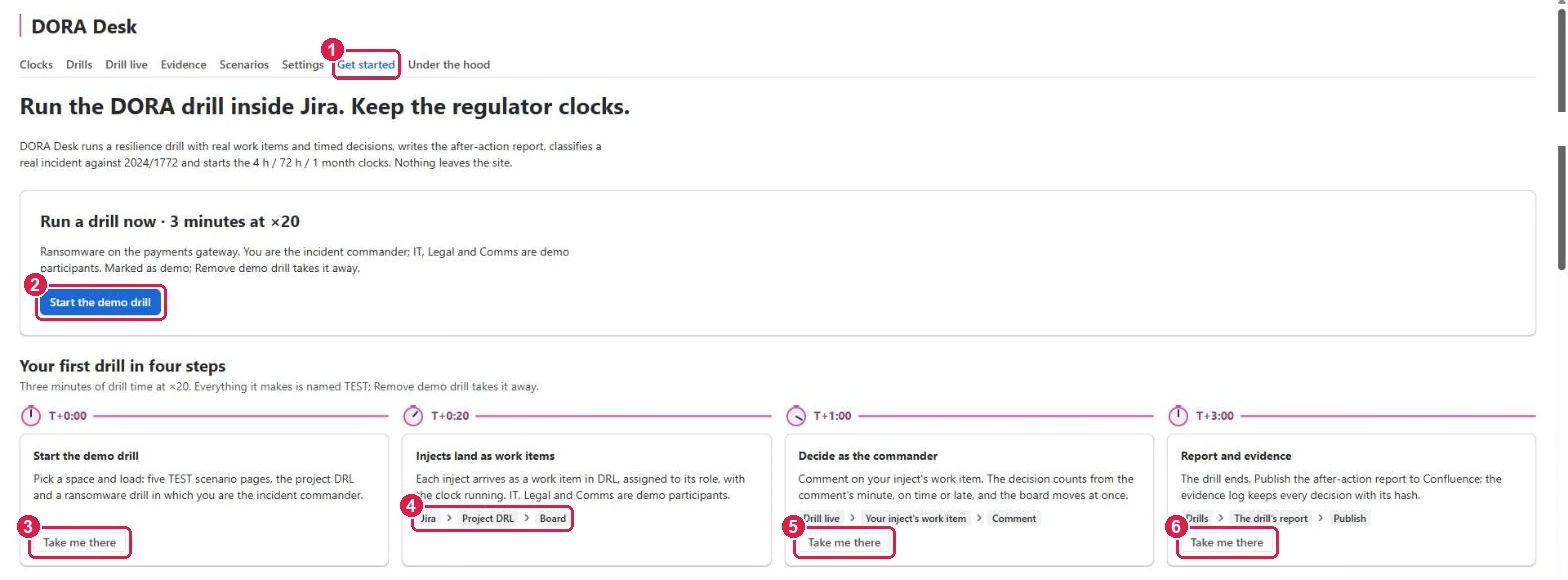
- Click the Get started tab.
- Start the demo drill: ransomware on the payments gateway, 3 minutes at ×20 speed. You are the incident commander; IT, Legal and Comms are demo participants. Everything is named TEST; Remove demo drill takes it away.
Your first drill in four steps follows the drill’s own clock:
- T+0:00 Start the demo drill — pick a space and load: five TEST scenario pages, the project DRL and the drill.
- T+0:20 Injects land as work items — each inject arrives as a work item in DRL, assigned to its role, with the clock running: Jira → Project DRL → Board.
- T+1:00 Decide as the commander — Drill live → your inject’s work item → Comment. The decision counts from the comment’s minute, on time or late, and the board moves at once.
- T+3:00 Report and evidence — the drill ends. Drills → the drill’s report → Publish to Confluence; the evidence log keeps every decision with its hash.
3. Watch the regulator’s clocks
-
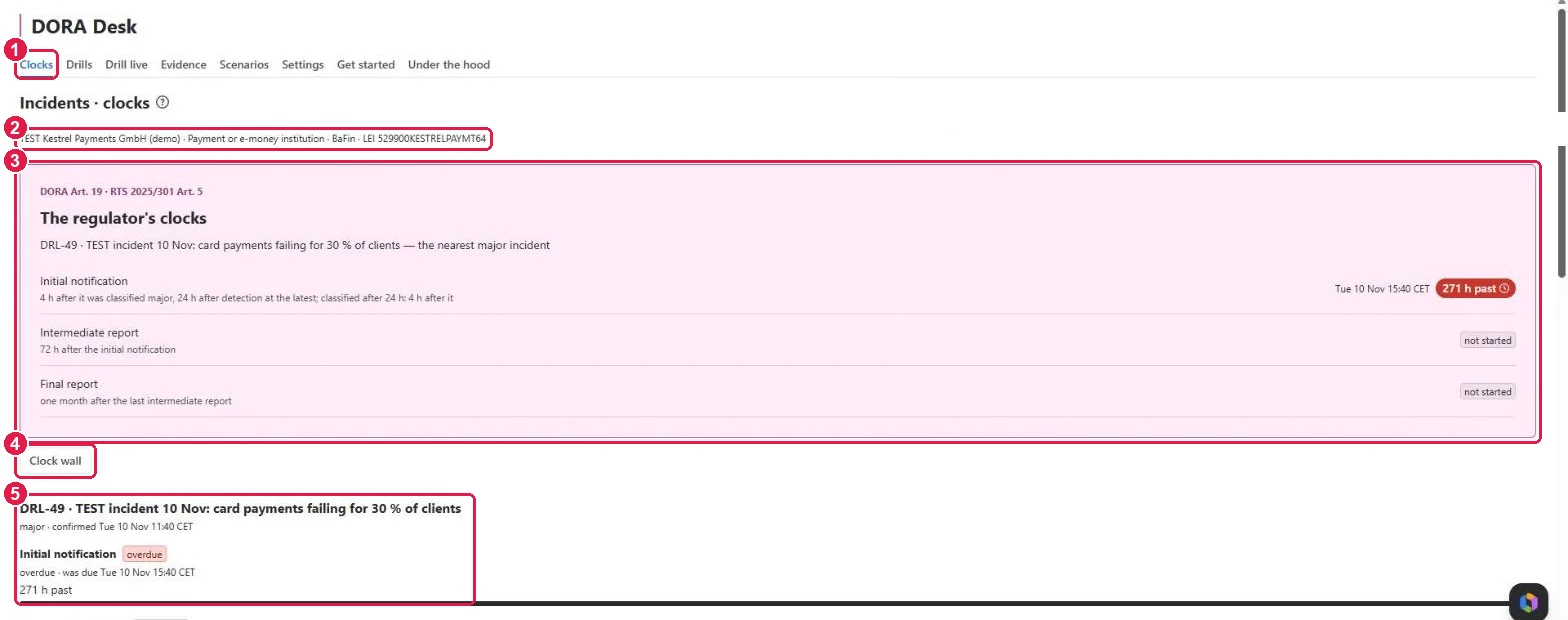
Click the Clocks tab.
-
The entity line: your legal name, kind of entity, competent authority and LEI, from Settings.
-
The regulator’s clocks of the nearest major incident:
- Initial notification — 4 hours after it was classified major, 24 hours after detection at the latest.
- Intermediate report — 72 hours after the initial notification.
- Final report — one month after the last intermediate report.
Each shows its due time, or how long it is past due in red.
-
Clock wall opens the clocks full screen for the war room.
-
Below: every major incident with its own clocks. When a report is filed, press Mark as sent to stop its clock and start the next one.
Classify an incident. Open the incident’s work item: the DORA classification panel asks the criteria of Regulation 2024/1772. When the answers make it major, the clocks start. Who classified it, and when, goes into the evidence log.
4. Plan and review drills
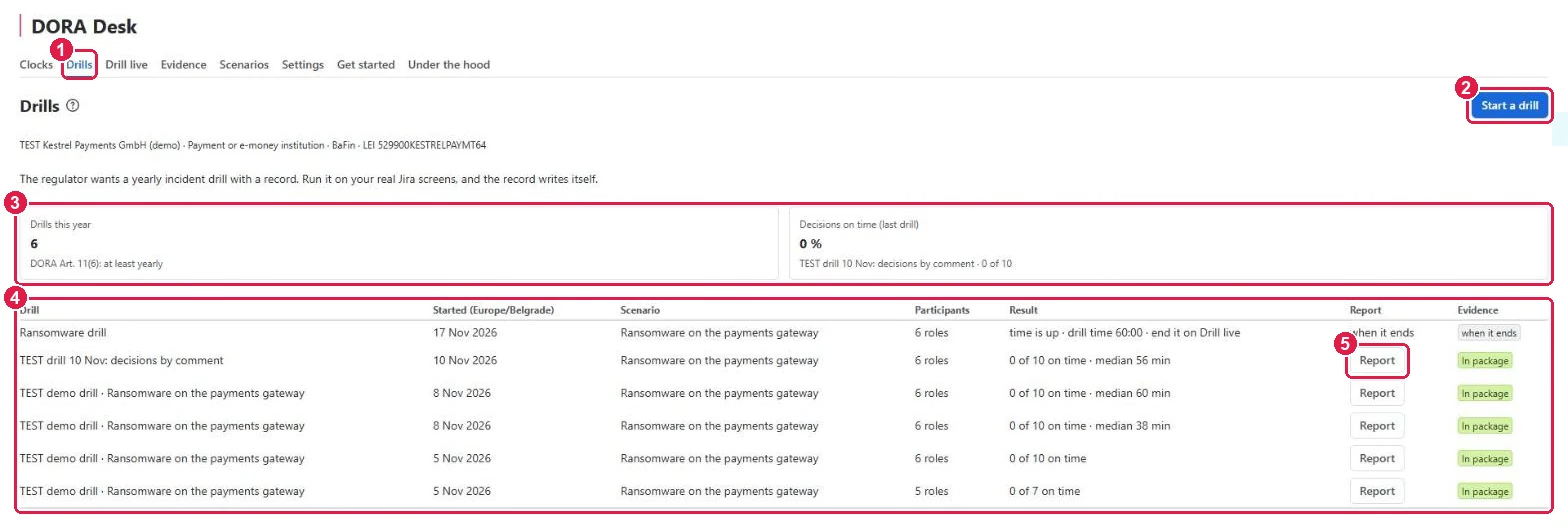
- Click the Drills tab.
- Start a drill: pick a scenario, the people for each role and the speed.
- Drills this year (DORA Art. 11(6) asks for at least one a year) and Decisions on time in the last drill.
- Every drill with its scenario, participants and result — decisions on time and the median time to decision.
- Report opens the after-action report; In package means it is in the year’s evidence package.
5. Run a drill live
- Click the Drill live tab while a drill runs.
- Drill clock: drill time, for example 60:00 of 60:00.
- Injects delivered, Decisions on time, Median time to decision and Open now.
- Injects: each one with its minute, the role it expects, its target time and runbook section, its state (waiting, on time, late) and its work item. Click the work item to decide by commenting.
- Advance 5 min (demo) moves a demo drill forward.
- End drill stops it; the after-action report is written at once.
6. Build the evidence package
- Click the Evidence tab.
- The package of the year: drills and published reports, findings (as work items), the incidents register and the standards it covers.
- Last package: the JSON and its PDF attached to the year’s evidence work item, with the JSON’s SHA-256.
- Build the package makes a new one with everything up to now.
- Standards: what the drill shows for DORA, NIS2, ISO 27001 and SOC 2, article by article.
- Evidence log: Verified means every entry’s hash chain is whole up to its head.
7. Choose a scenario
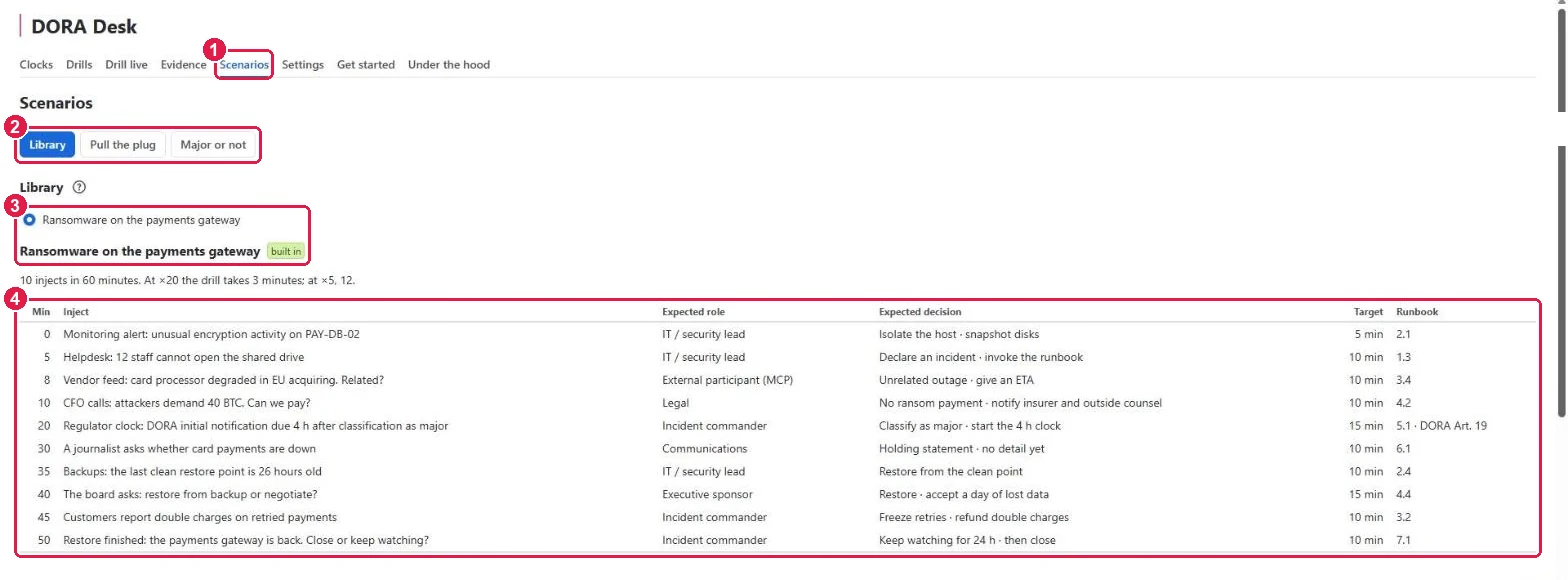
- Click the Scenarios tab.
- Library lists the scenarios a drill can run. Pull the plug: pick a provider and a time of day, drag the outage’s length, and watch the seven criteria of 2024/1772 tell when it becomes major — a simulation computed in your browser; a draft drill can be made from it. Major or not: five training incidents of a fictional payment institution — decide, then see how DORA Desk classifies each.
- Pick a scenario, for example Ransomware on the payments gateway (built in): 10 injects in 60 minutes.
- The injects: the minute each lands, the role expected to answer, the expected decision, the target time and the runbook section. Below, Expected decisions per role.
8. Settings: your entity and authority
- Click the Settings tab (a project admin).
- Legal name and LEI as in your reports to the authority.
- Kind of entity: payment or e-money institution; credit institution, CCP or trading venue; or an essential or important entity under NIS2.
- Competent authority, for example BaFin.
- Bank holidays of your region, for the clocks.
- Weekend and bank-holiday rule (RTS 2025/301 Art. 5(4)): Applies, or Switched off by the authority.
Further down: the time zone of the clocks, and Choose people for each drill role from your project’s groups. Press Save settings.
9. Rovo (optional)
On sites with Rovo, the DORA Desk agents help during a drill and an incident: deliver the next inject, give a hint, record a finding, classify an incident, draft the initial report and tell the clock status. They never decide for a participant, submit a report, un-major an incident or stop a clock.
Under the hood
The Under the hood tab shows how the app works, what it keeps and what each screen costs, which permissions it asks for and why, and a self-check that tests every part on your site. Run it when something looks wrong and send us the result.
Need help?
Write to us through our Support Desk. Read how your data is handled in the privacy policy.