Child Issue Order for Jira – User Guide
Child Issue Order step by step with screenshots: add the panel to an epic, drag a row or use its buttons, and see the same order in Jira and the backlog.
Child Issue Order adds a panel to a Jira issue. The panel lists the issue’s child issues — the stories, tasks and bugs of an epic, or the sub-tasks of a story — and lets you put them in order. You drag a row, or press a button. The new order is saved in Jira at once, as Jira’s own Rank, so Jira’s lists, boards and the backlog show it too.
How to read the pictures. Every screenshot comes from a real Jira site. The red boxes with numbers show where to look or click. Number 1 in the picture is step 1 in the text, number 2 is step 2, and so on.
Get started in 2 minutes
- Install Child Issue Order from the Atlassian Marketplace. You need to be a Jira admin. It is free for up to 10 users. There is nothing to set up.
- Open an epic (or any issue that has child issues or sub-tasks).
- Under the issue’s title, click the Apps button and choose Child Issue Order. The panel opens on the issue and lists its children.
- Drag a row to a new place, or press its ↑ or ↓ button. That’s it: the order is saved.
Add the panel to an issue
Jira shows an app’s panel on an issue after someone adds it there. You do this once per issue; after that, everyone who opens the issue sees the panel.
- Open the issue. Under its title there is a row of small buttons. Click the Apps button (the one with the hexagon).
- A list of your apps opens. Click Child Issue Order.
The panel appears in the issue, under Jira’s own sections:
- The panel is called Child Issue Order. It shows how many child issues there are, then one row per child: type, key, summary, status and assignee.
The first time you open the panel, a short tip says how it works. Press Got it to close it.
The rows are in Rank order: the same order Jira uses on boards and in the backlog. Nothing has changed yet — this is the order your issues already had.
Move a child issue
Drag a row
- Point at the six dots at the start of a row. Press the mouse button and hold it.
- Move the row up or down. A blue line shows where it will land. Let go of the mouse button.
The row stays in its new place, and the order is saved in Jira right away. There is no Save button.
Use the buttons instead
You don’t have to drag. Every row has its own buttons:
- ↑ moves the row one place up, ↓ one place down.
- ⋯ opens the row’s menu.
- In the menu: Move to top, Move to bottom, or Open the issue.
The first row has no working ↑, and the last row has no working ↓: they are greyed out.
Keyboard: press Tab to reach a row’s buttons and Enter to press one. Everything in the panel works without a mouse.
If something goes wrong
- The row jumps back and a message says it was not moved: Jira refused the change. The message says why, and the list shows Jira’s order again.
- “Someone else changed the order”: another person moved a child issue while you were working. The list now shows the new order; just move again if you need to.
- The list looks old: press Reload at the top right of the panel.
Quick help in the panel
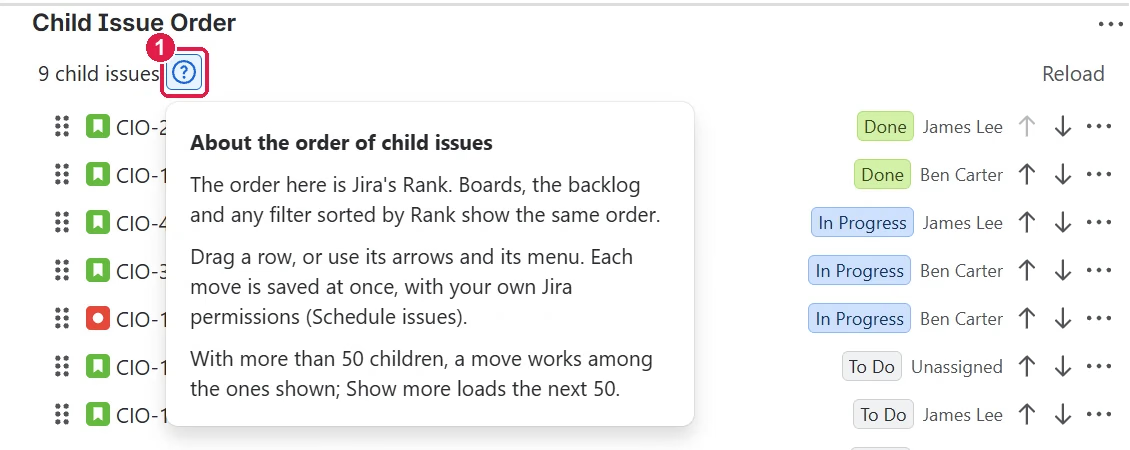
- Click the ? next to the number of child issues. A short tip explains where your order shows and how moves are saved.
More than 50 child issues
The panel shows the first 50 child issues and says, for example, “50 of 120 child issues”. Press Show more at the bottom to load the next 50. You can move a row only among the rows that are shown, so load them all before you use Move to bottom on a big epic.
Where your order shows
The order you set is Jira’s Rank, not a private list kept by the app. So every place in Jira that sorts by Rank shows it.
Jira’s Child work items list
- Jira’s own Child work items list on the same epic shows the children in the same order. Reload the page if it was already open.
Sub-tasks
The panel works on a story or task too: there it lists the sub-tasks. Jira’s own Subtasks list follows the order you set.
Boards and the backlog
Boards, the backlog and any filter sorted by Rank (ORDER BY Rank) list the epic’s work in the same order. The team picks the next item from the top.
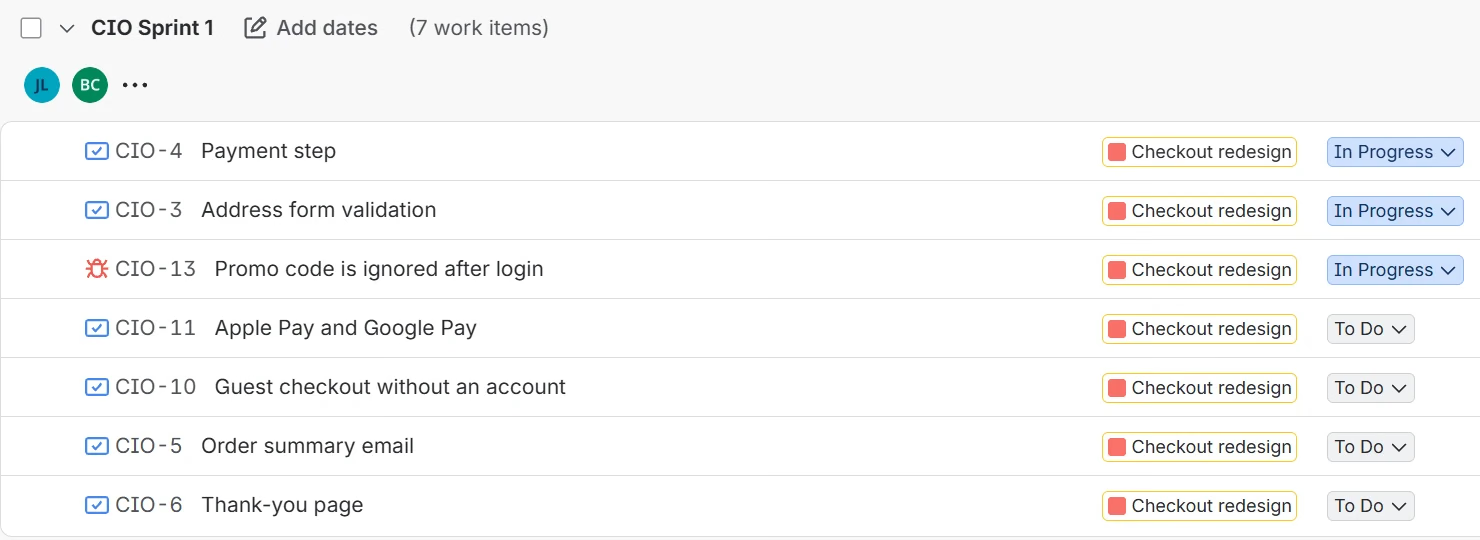
A board or backlog shows other issues too, so the epic’s children may have other issues between them. Their order among themselves is the order you set.
Who can change the order
Each move is made as you, with your own Jira permissions. To change the order you need the Schedule issues permission in the project — the same permission you need to rank issues on a board.
- Without that permission the panel says You can see the order but not change it. You still see the list, but there are no handles and no arrows. Ask a Jira admin or project admin to give you Schedule issues.
Other messages you may see:
- No child issues yet — the issue has no children. Add one in Jira, then come back.
- This site has no Rank — ordering needs Jira’s Rank field, which comes with Jira Software. Without it the panel shows the children in the order they were created.
Where it works
- Epics and their stories, tasks and bugs; stories and tasks with sub-tasks.
- Company-managed and team-managed projects.
- Jira Service Management: the sub-tasks of a request.
- Light and dark theme, and narrow or wide issue views.
Licence
Child Issue Order is free for sites with up to 10 users; larger sites pay per user through the Atlassian Marketplace after a 30-day trial. Without an active licence the panel says Child Issue Order has no active licence and shows no list. A site admin renews it in Admin → Apps → Manage apps.
Privacy and data
The app keeps no copy of your issues: the list is read from Jira as you each time the panel opens, and each move is one rank change made as you. It stores only two small marks per person — that the first tip was shown, and when to ask for a review. See the privacy policy.
Need help?
Ask on our support portal, or suggest an idea there.