How to Sync Google Calendar with Jira for Team Availability
On this page
What “sync” actually means here
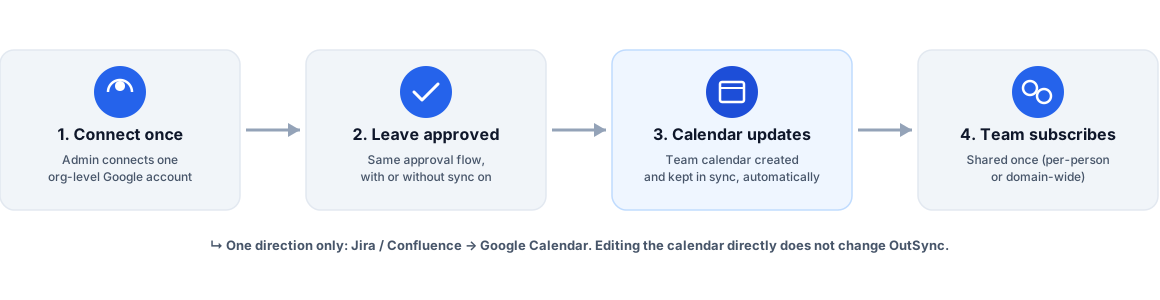
Before the steps: a Jira or Confluence leave tracker that “syncs with Google Calendar” can mean several different things, and the difference matters enough that it’s worth stating plainly up front. This walkthrough covers OutSync’s implementation specifically, and here’s the honest shape of it — one direction, org-level, optional:
- An admin connects one Google account for the whole organization — not one per employee.
- When a leave request is approved, OutSync creates the team’s shared Google Calendar the first time it’s needed, and writes the approved leave to it automatically.
- If that leave is later cancelled or an approval revoked, OutSync updates or removes the calendar event to match — the calendar never has to be manually tidied up.
- Data flows into Google Calendar, not back out. Editing an event directly in Google Calendar doesn’t change anything in Jira or Confluence — it isn’t a two-way sync, and no vendor selling a “leave tracker” in this category should imply otherwise without saying exactly what direction the data moves.
Step 1: Connect the organization’s Google account
From OutSync’s admin settings, on the Org settings tab, a site admin clicks Connect
Google Calendar and completes Google’s own consent screen. This is a one-time, org-level
connection — not something every employee repeats. Behind the scenes, this requests the
https://www.googleapis.com/auth/calendar scope (Google flags this “Sensitive,” which is
expected for anything that can create or modify calendar events, not a sign anything unusual
is being requested).
Two things worth knowing about this step specifically:
- It requires a stable, pre-registered redirect URL. Google’s OAuth flow only ever redirects back to one exact URL registered in the Google Cloud Console, which is why an app like this needs a small, fixed relay endpoint rather than routing straight back to a per-installation Forge URL that changes across sites. (Covered in more depth in the trust piece linked below — it’s the one part of this integration that leaves Atlassian’s own infrastructure, and it’s worth understanding exactly what that relay does and doesn’t see.)
- Reconnecting is safe, and sometimes necessary. If Google ever stops honoring the saved connection — an admin revoked access from the Google side, or it expired from months of inactivity — OutSync’s connection-status check catches this on its own (it re-verifies live against Google on every page load rather than trusting a cached “was this ever connected” flag) and shows a clear “needs to be reconnected” prompt instead of quietly failing.
Step 2: Approve a leave request
Nothing else to configure here — this is the same approval flow that runs with or without Google Calendar connected. An employee submits a request, their team’s configured approver (or the org-wide default, or — if neither is set — the Jira project lead or Confluence space admin) reviews it from their queue and approves it.
Step 3: The team’s calendar gets created and updated automatically
The first time a team has an approved leave request after the org-level connection exists, OutSync creates a shared Google Calendar for that team under the connected account and adds the event. Every subsequent approval, cancellation, or revocation for that team updates the same calendar — there’s no manual step here, and no separate “sync now” action to remember.
Step 4: Share the calendar so employees can actually see it
This is the step that’s easy to skip and then wonder why “sync” doesn’t seem to be doing anything. The calendar lives under the connected organization account, not each employee’s own — so it has to be shared before anyone else can see it. Two ways to do that, depending on how much manual work you want per employee:
- Per-person sharing, from Google Calendar itself: open the team’s calendar → Settings and sharing → “Shared with” → add the specific people or groups who should see it.
- Domain-wide sharing, if your organization uses Google Workspace: a Workspace admin can share it with everyone automatically from the Google Admin console’s Calendar sharing settings (Apps → Google Workspace → Calendar → Sharing settings), which avoids adding people to each team calendar by hand one at a time as the team grows.
Once shared, employees see a Subscribe to the team calendar link right on OutSync’s own general-access screen — no hunting for the calendar’s name or asking around for the link.
Where this fits the wider picture
None of this requires giving up the board-level or space-level visibility that doesn’t depend on Google at all — the “who’s out” panel on the Jira board and the Team Availability tab on Confluence work identically whether or not Google Calendar is ever connected. The calendar sync is additive: a convenience for anyone who lives in their calendar day-to-day, layered on top of visibility that already exists where planning happens. See the ghost-resource problem for why that board-level visibility is the part that actually prevents planning around someone who’s out — the calendar sync is the nice-to-have on top of it, not a substitute for it.
Related reading
Frequently asked questions
Is Google Calendar sync two-way?
No, and it's worth being precise about this. OutSync writes approved leave to a Google Calendar it manages — creating, updating, and removing events as leave is approved, cancelled, or revoked. It does not read arbitrary events back out of Google Calendar into Jira or Confluence. If you manually add an event to the synced calendar, it has no effect on anyone's leave balance or approval status in OutSync.
Does every employee need to connect their own Google account?
No. One organization-level Google account is connected once, by an admin. OutSync then creates and maintains a shared calendar per team under that account — individual employees never go through an OAuth flow themselves.
What happens if the Google connection breaks?
Leave approvals keep working exactly as before — calendar sync is optional and never blocks the core workflow. OutSync's status check re-verifies the connection on every admin-page load (not just a cached "was this ever connected" flag), so a revoked or expired connection surfaces as a clear "needs to be reconnected" warning rather than silently failing.