OutSync Guide: Leave & Vacation in Jira and Confluence
Step-by-step guide to OutSync: set approvers and the leave policy, request and approve time off, see who is out on the board or space, log contractors and sync Google Calendar.
Overview
OutSync manages leave inside Jira and Confluence: employees request vacation, PTO or sick leave with a live balance, approvers decide from a queue, and everyone sees who is out — on the Jira board, on an issue, or in the Confluence space. Approved leave can be synced one way to a shared Google Calendar per team.
OutSync is two separate Forge apps, each with its own teams, approvers and policy:
- OutSync for Jira — a team is a Jira project; who’s out on the board and on issues.
- OutSync for Confluence — a team is a Confluence space; who’s out on the Team availability tab.
Every page has a short line on top and ? buttons that explain who approves, how balances count and who sees what.
Watch it first: the OutSync for Jira demo and the OutSync for Confluence demo.
Install
Employees use OutSync’s own page from the Apps menu. Admins configure it on the admin page: Jira — Jira settings → Apps → OutSync; Confluence — General settings → OutSync.
Admin: set up a team
The admin page has four tabs: Team settings, Org settings, Log leave and Audit log.
1. Pick the team
On Team settings, choose Team to configure — a Jira project or a Confluence space. Everything below — approvers, employees, holidays and the approval queue — applies to that team.
2. Who approves
On Approvers, add the team’s approvers and Save team override, or leave it empty to use the Org-wide default approvers. The order is:
- the approvers set for the team;
- the org-wide default approvers;
- the Jira project lead, or the Confluence space’s admins (given admin directly, not through a group).
Site admins can always decide; nobody decides their own leave.
3. People without an Atlassian account
A team’s members are read live from the project’s roles and groups (Confluence: the space’s permissions). On Employees, add people who have no Atlassian account — contractors, for example — with a name and an id, so you can log their leave.
4. Public holidays (Advanced)
On Holidays, choose the team’s region — United States, United Kingdom or Germany. Public holidays in that region then don’t count against the team’s balances.
5. The leave policy
On Org settings, set Accrual days per year, Allow half-day increments and Max carryover days (Advanced), then Save. The policy applies to every team.
Weekends never count; a half day counts 0.5. Carryover moves unused days into the next year, up to the maximum. Clear removes the limit — without an allowance there is no limit.
Employee: request time off
Open Apps → OutSync. The page has My requests, My approval queue and Team availability.
- Choose Your team, the Type (vacation, PTO, sick leave…), the dates and, if allowed, a half day.
- Submit. The request goes to the team’s approvers; it is listed under Your requests as Pending, where you can Edit reason or Cancel it.
- The balance is your yearly allowance plus carried-over days, minus leave approved this year. A new request must fit together with your pending ones.
Approver: decide
My approval queue lists the pending requests of every team you approve for, with filters for team, dates and employee: Approve or Reject. Admins can also decide from a team’s Approval queue tab on the admin page, and Revoke approved leave:
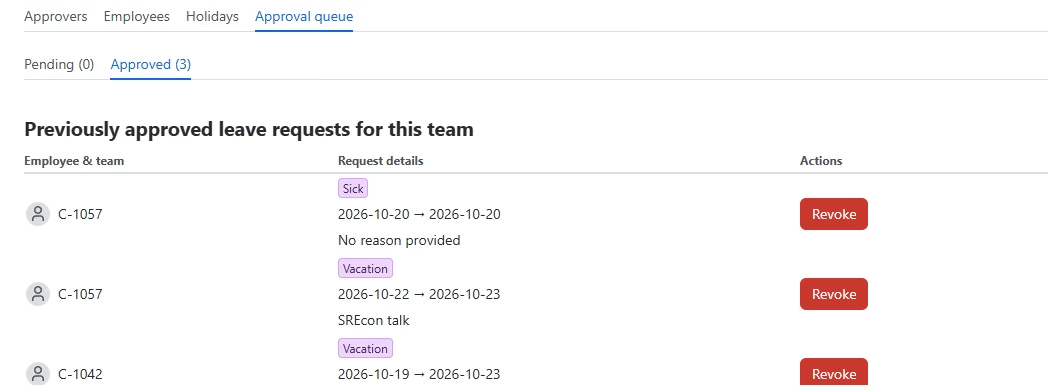
Approving deducts the days and, with Google Calendar connected, adds the event. Cancelling or revoking gives the days back and removes the event.
Log leave for people without an account
On Log leave, an admin records leave for an employee without an Atlassian account: the team, the person, the leave type, dates and an optional note. It is approved at once, added to the team’s Google Calendar when connected, and recorded in the audit log.
With the Advanced edition, Log leave for several employees at once does the same for a whole group — a contract break over the holidays, for example:
People with an Atlassian account request leave themselves.
See who’s out
Only approved leave shows, and only people who can open the project (space) see it.
Jira: the board
Open a board’s ••• menu → Team availability. Who’s out lists the team of the board’s project for Today, Next 2 weeks or Next month, grouped into out now and this week:
On an issue, the OutSync availability panel shows whether its assignee is away.
Confluence: Team availability
The Team availability tab shows who on the space’s team is out today, in the next two weeks or the next month:
The request form in Confluence works the same, with the space as the team:
Google Calendar sync (optional)
Connect one organization account
On Org settings, an admin presses Connect Google Calendar and completes Google’s consent screen — once, for the whole site:
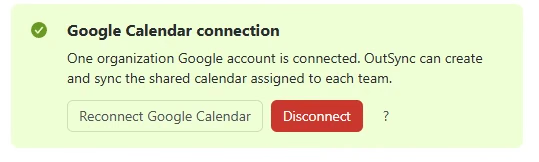
OutSync creates one calendar per team on its first approval and only touches the events it created. It goes one way: changes made in Google don’t come back. Sick leave shows as “out of office”, and the reason is never sent.
Share the team calendar
The calendar lives under the connected organization account. Share it once in Google Calendar (Settings and sharing → Shared with), or domain-wide from the Google Admin console; employees then use Subscribe to “OutSync — PAY” on OutSync’s pages.
If the connection needs attention
If Google stops accepting the connection (access revoked, or expired), approvals keep working; the admin page and employees’ pages show a warning, and Reconnect Google Calendar fixes it. “N approved requests are not in Google Calendar yet” with Sync again adds the missed ones.
Audit log
Audit log (Advanced) lists changes to approvers, members, holidays and the leave policy, and leave logged for others — who and when, newest first:
Standard and Advanced
| Standard | Advanced | |
|---|---|---|
| Requests, approvals, balances, half days, sick leave | ✓ | ✓ |
| Who’s out on the board, issues and space | ✓ | ✓ |
| Google Calendar sync | ✓ | ✓ |
| Log leave for people without an account | ✓ | ✓ |
| Public holidays by region | ✓ | |
| Carryover of unused days | ✓ | |
| Log leave for several people at once | ✓ | |
| Audit log | ✓ |
A site admin switches editions in the app’s subscription settings. See OutSync Standard vs. Advanced.
Data and permissions
- Core processing and storage run on Atlassian Forge: requests, balances, approvers, members and the audit log are stored inside your Atlassian site.
- Google Calendar is the only connection outside Atlassian, optional and off until an admin connects it. A minimal relay forwards only Google’s short-lived authorization code — never tokens, calendar or leave data. OutSync never reads other calendar events.
- Licence: without an active licence the pages say so; requests and settings are kept and come back once it is active.
See the privacy policy and what OutSync accesses in Google Calendar.
Troubleshooting
- “You don’t have permission to do this.” — you are not an approver or admin for that team.
- “This needs OutSync’s Advanced edition.” — holidays, carryover, bulk logging and the audit log are Advanced features.
- A request doesn’t fit the balance — pending requests count against it too; cancel one or ask an admin about the allowance.
- Nobody shows on Who’s out — only approved leave of the board’s own project team is listed.
Questions? Contact us.